Cardeleine is your partner when implementing digital business cards into trember rooms.
We've build various enhancement to the existing user experience. Learn how to implement Cardeleine's digital business cards demo into trember's digital meeting rooms.
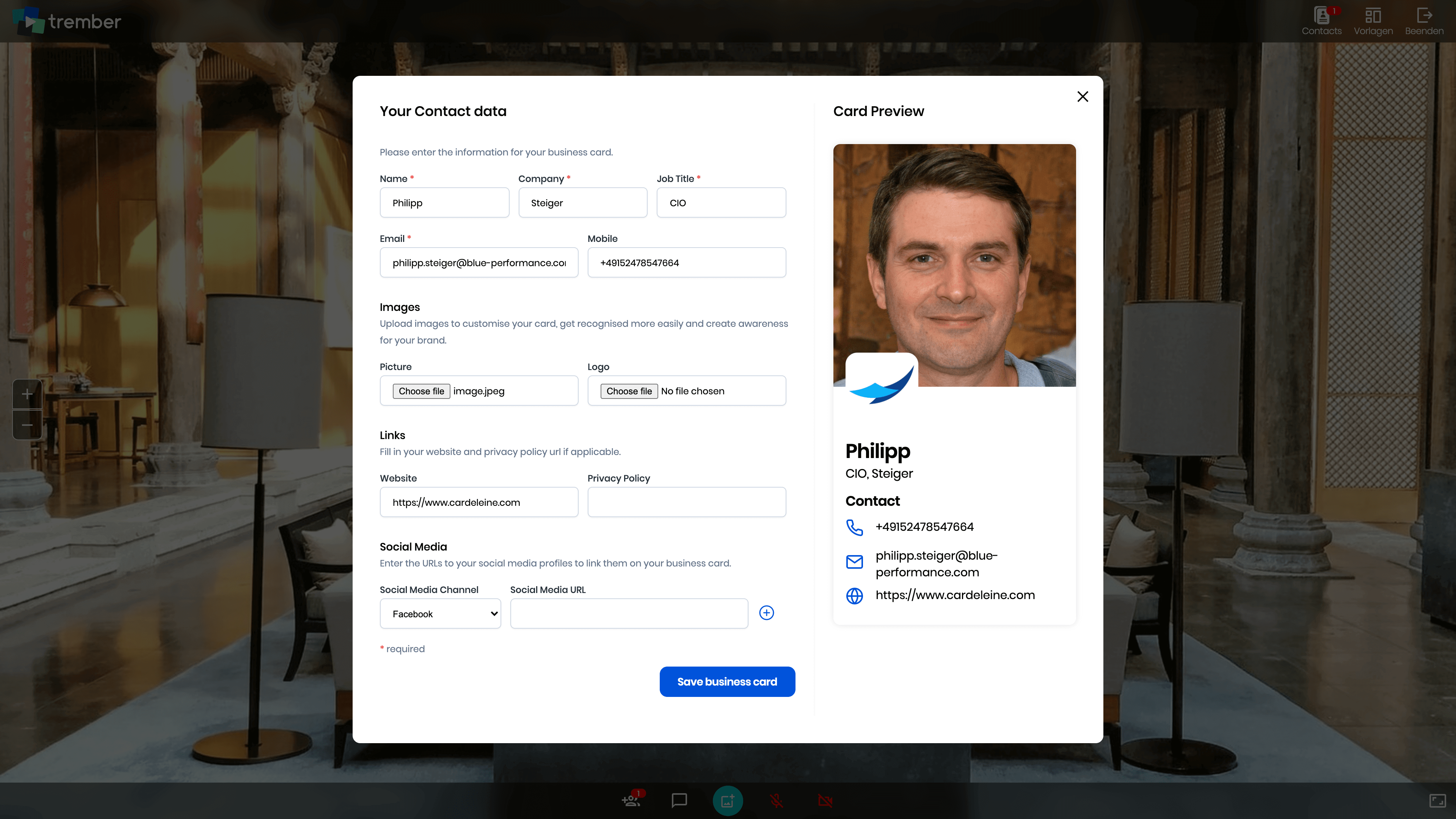
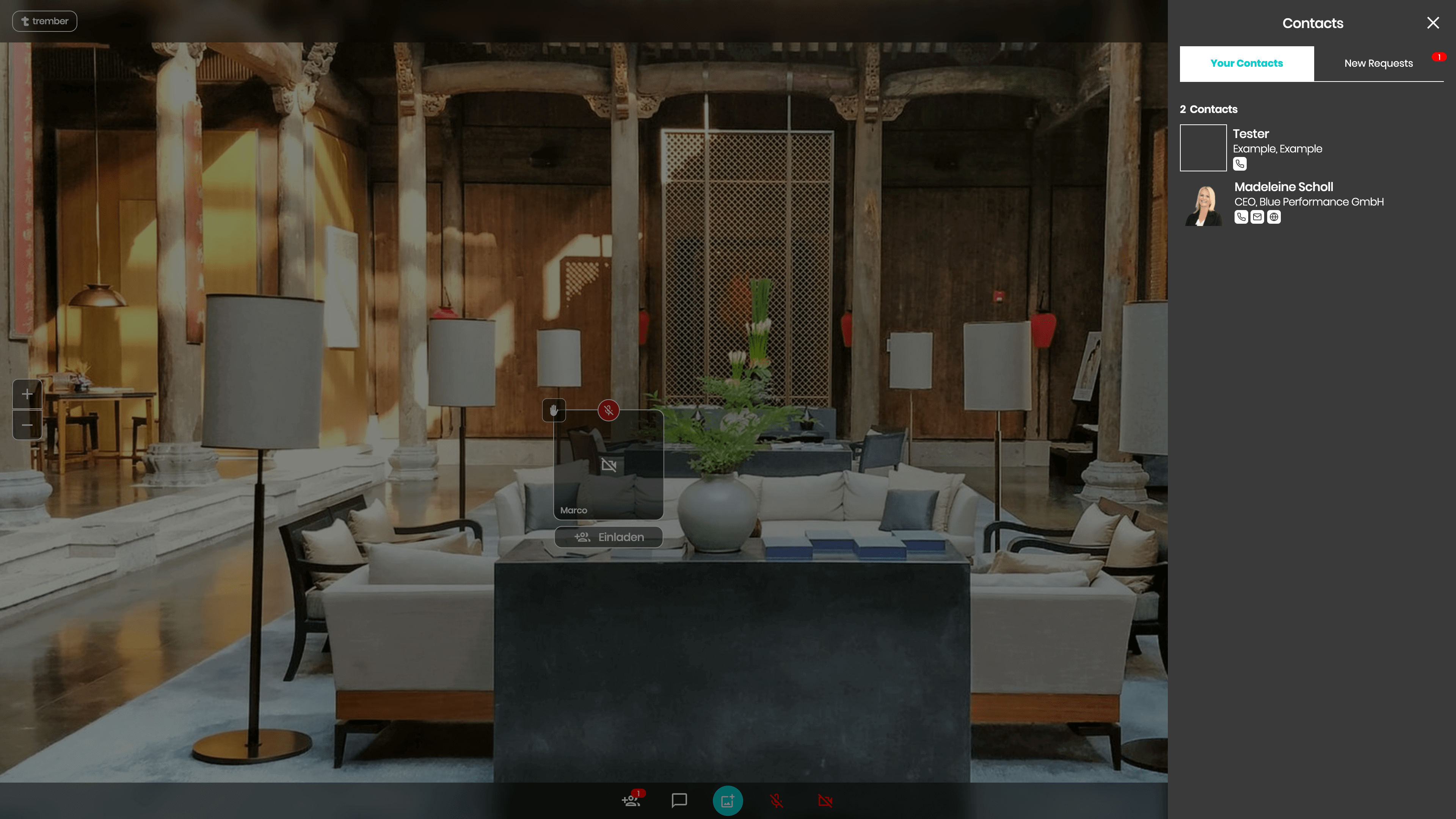
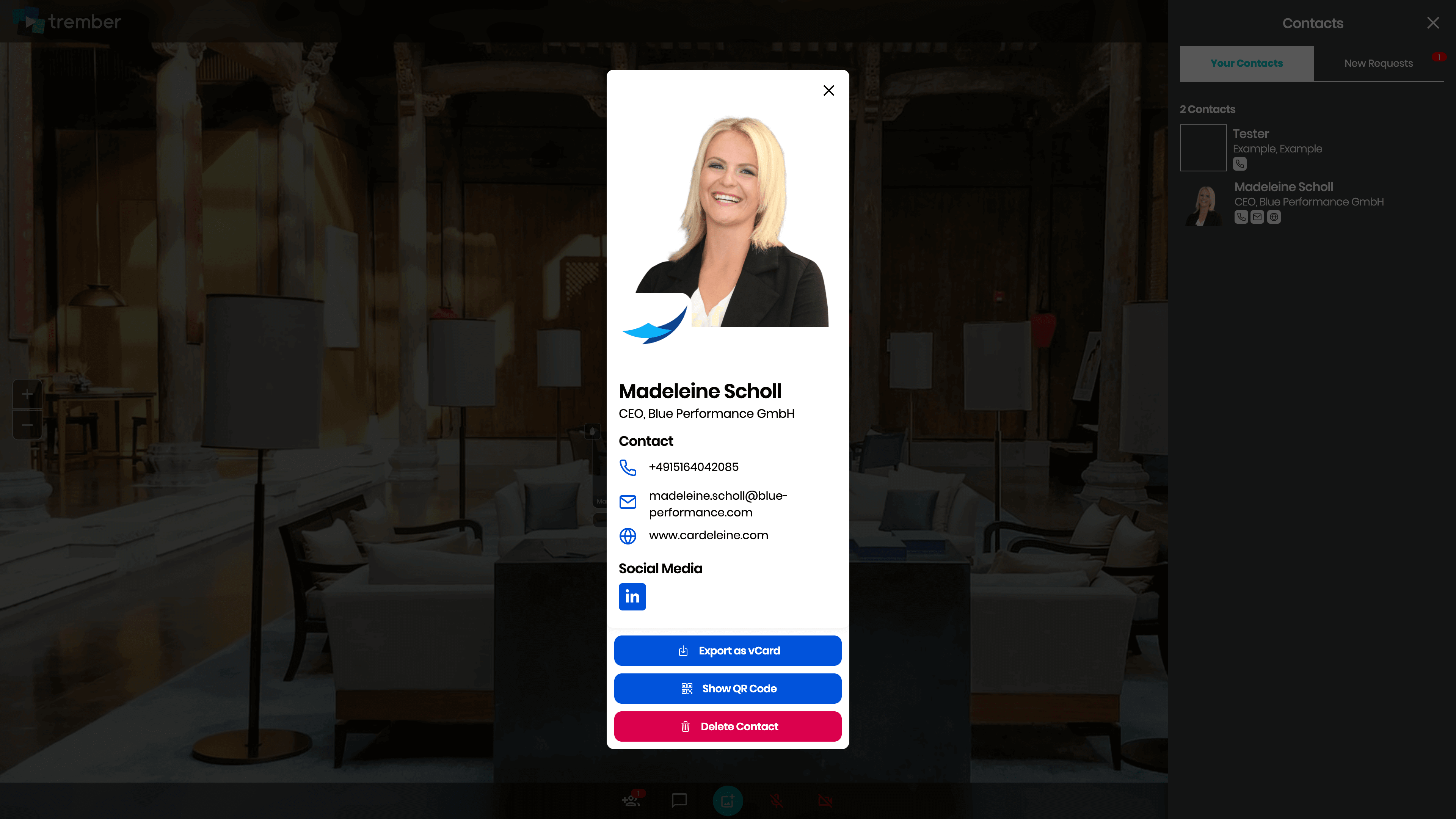
If you want to try the demo sdk for trember please follow the following steps.
Open a trember meeting room that has the digital business cards feature enabled (i.e. vika-p-663) but do not enter the meeting room yet.
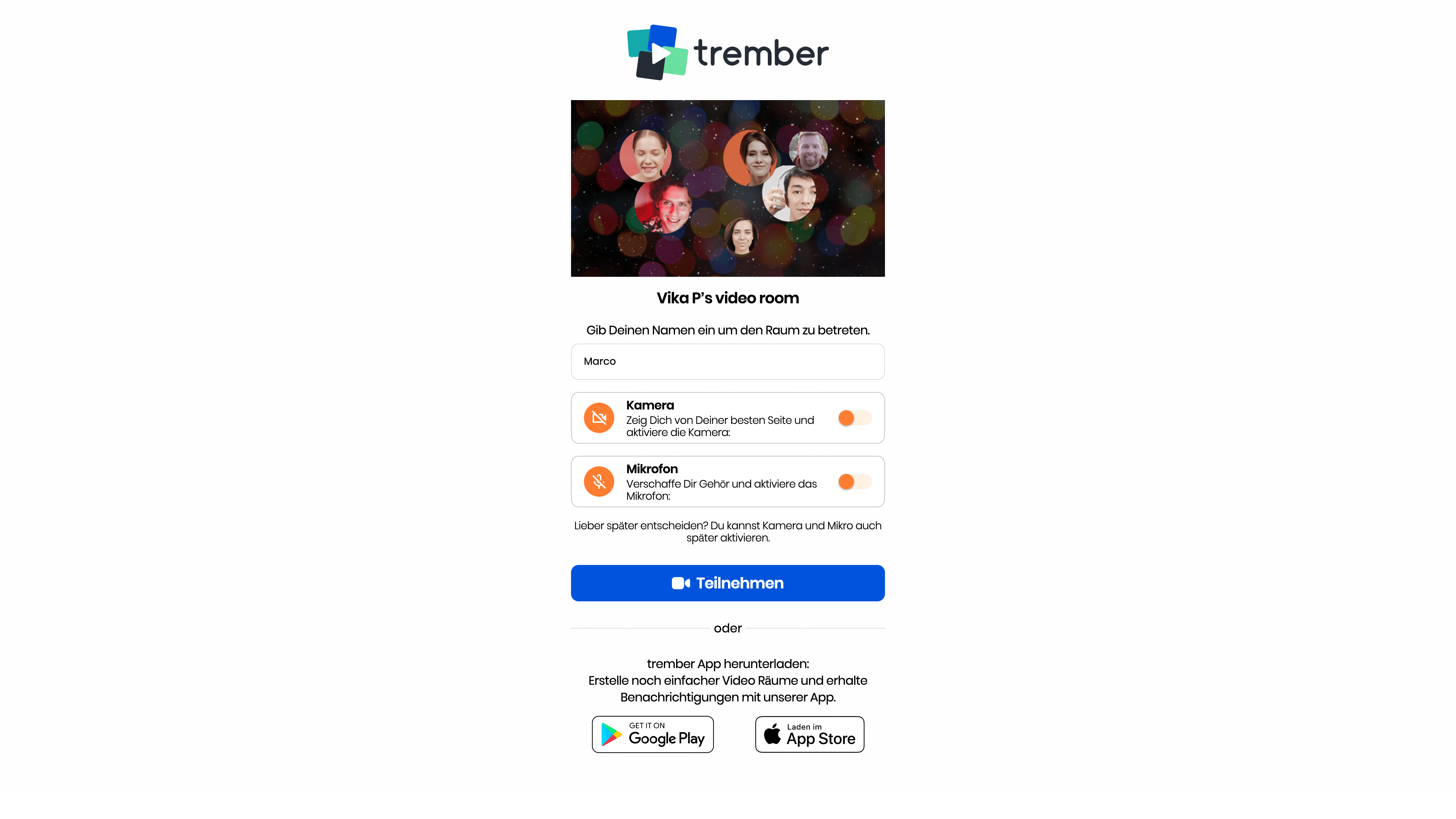
Right click the empty area to open the context menu of your browser.
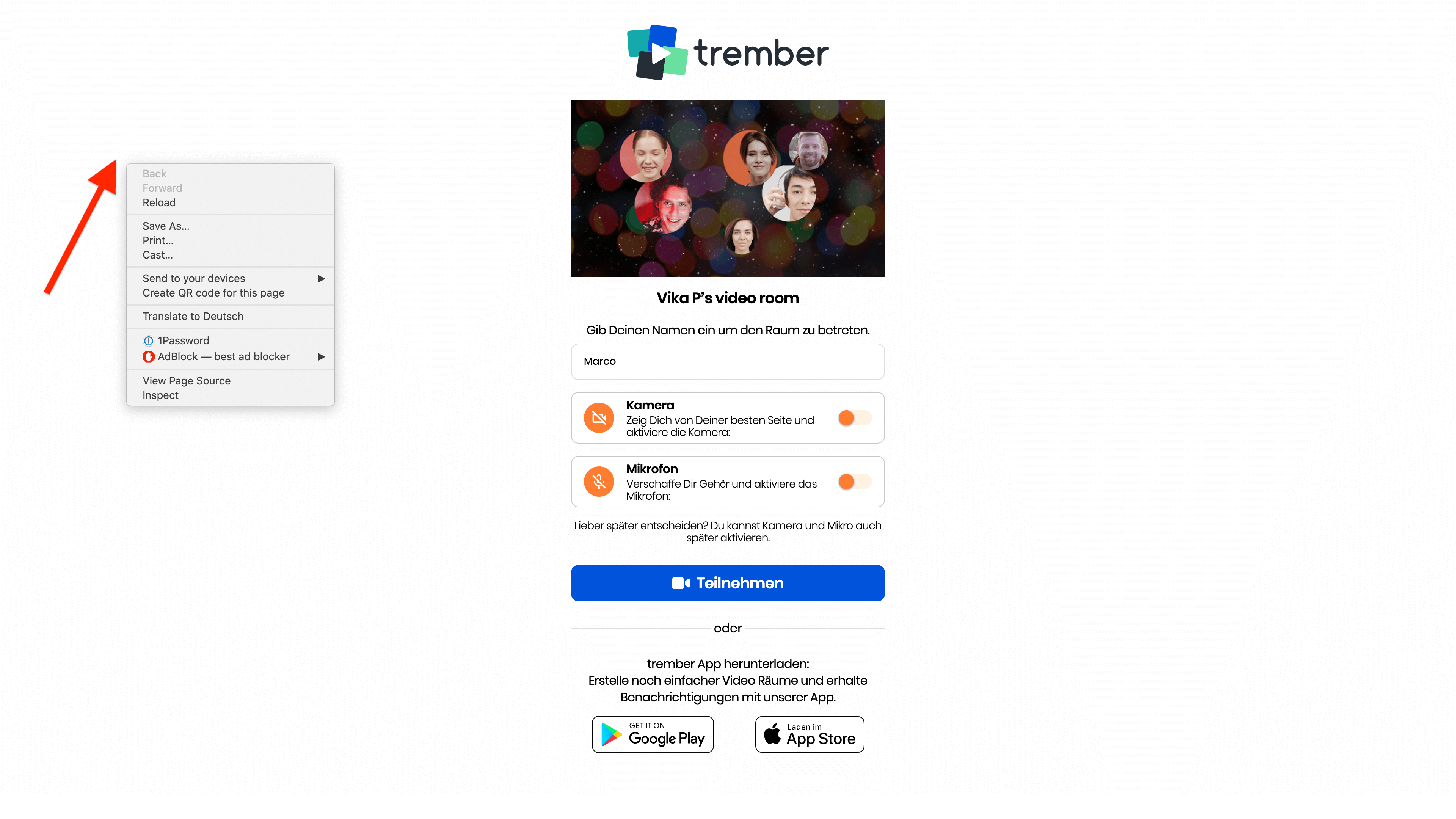
By clicking "Inspect" you open the Developer Console of your browser.
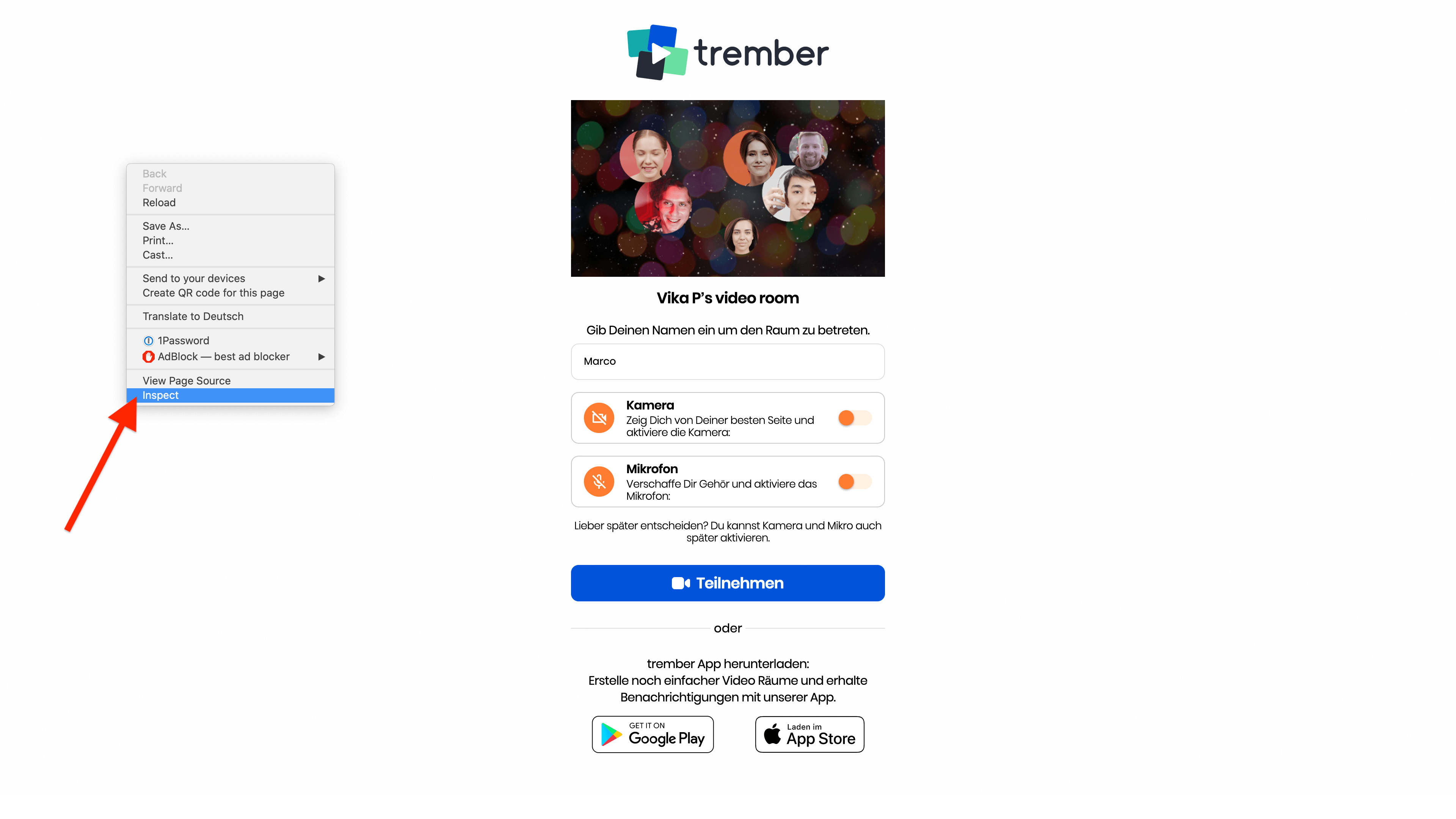
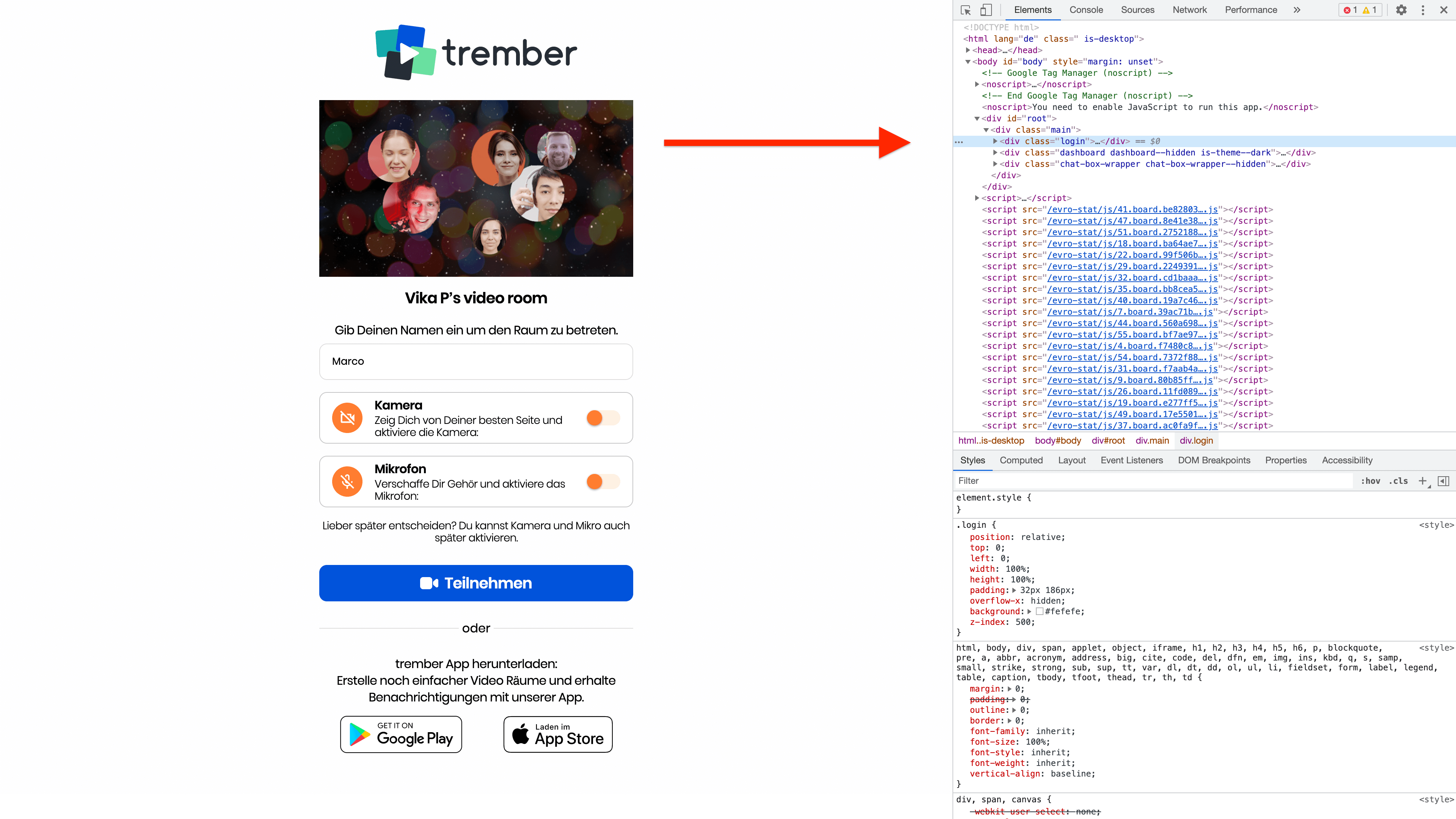
The Developer Console window should now have opened.
Click the second tab of the new appearing window
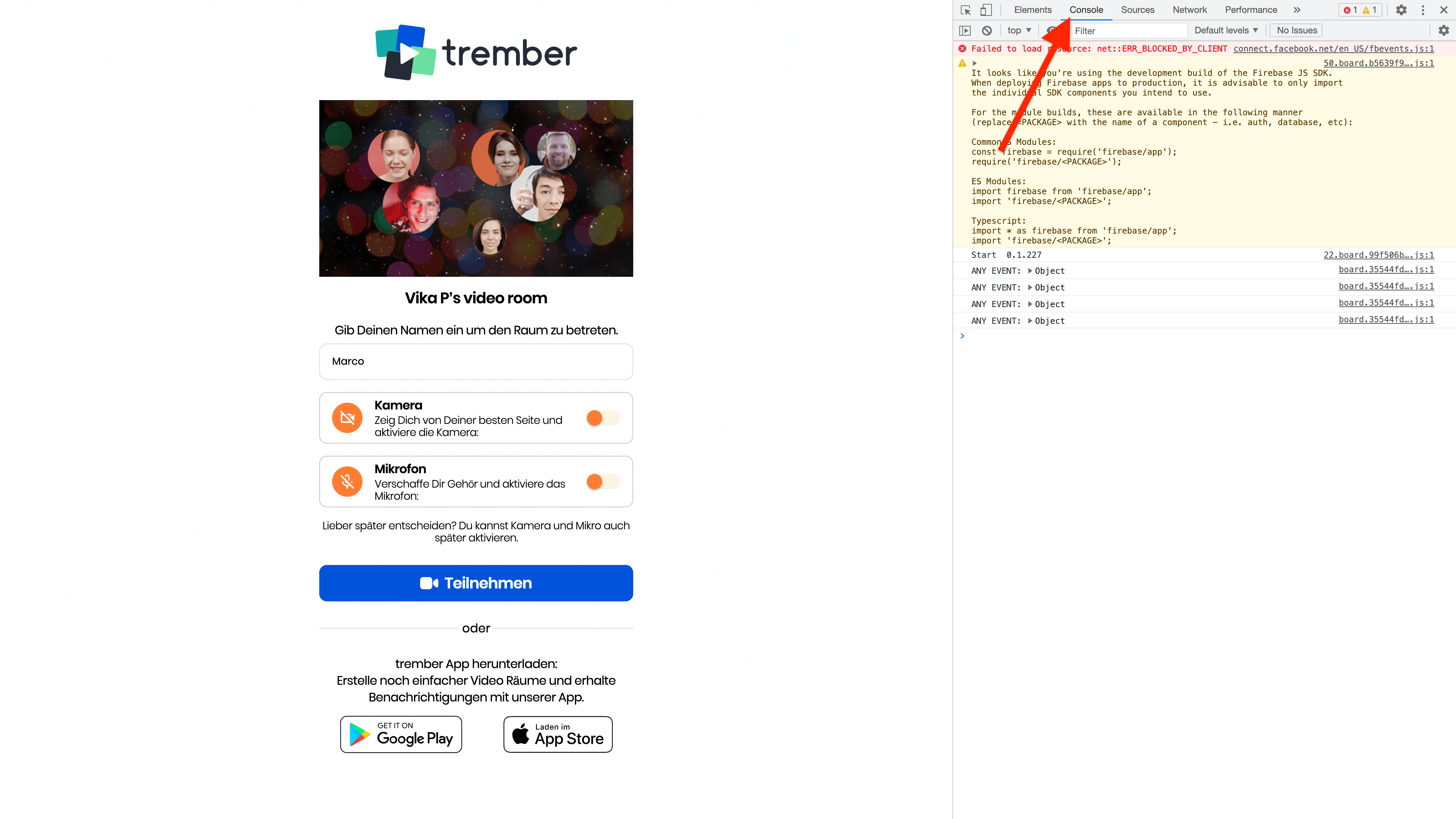
Copy the following code:
let s = document.createElement('script');
s.src='https://cdn.cardeleine.com/sdks/js/cardeleine-sdk.v0.1.3-trember.js';
document.body.appendChild(s)
Now paste the code you just copied into the Console in the empty area on the right.
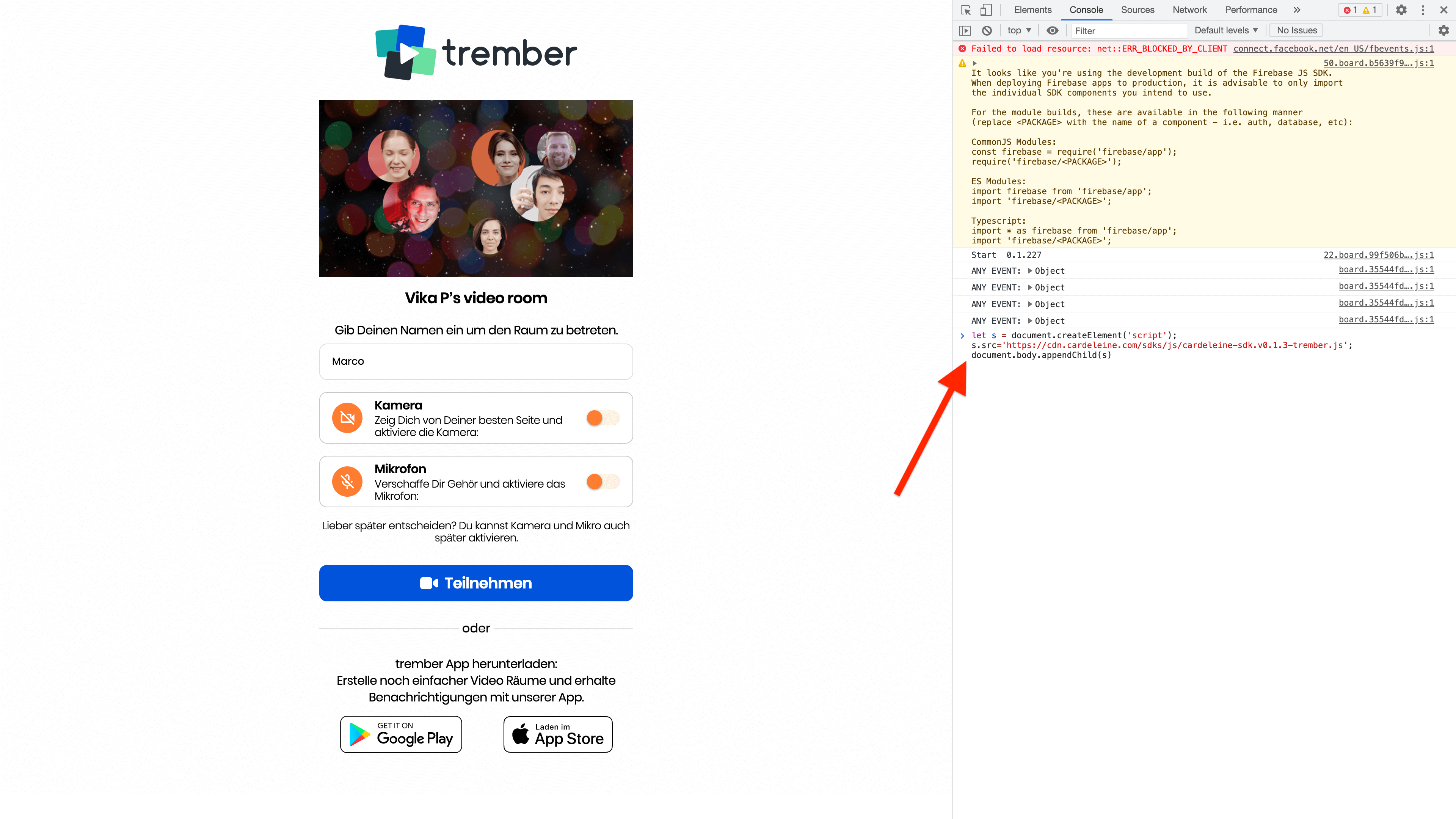
To confirm and execute the code you just pasted press the Enter Key on your keyboard.
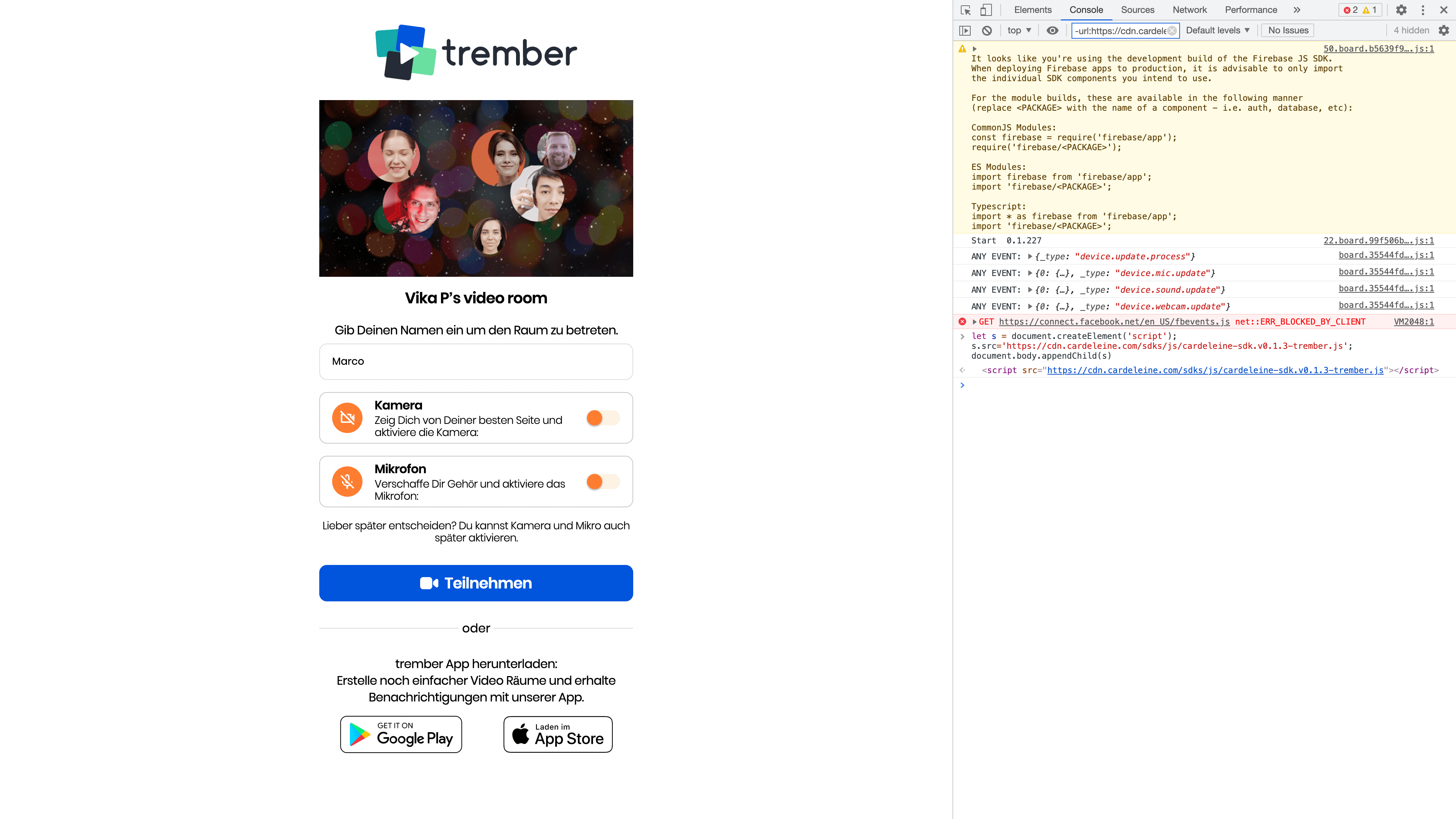
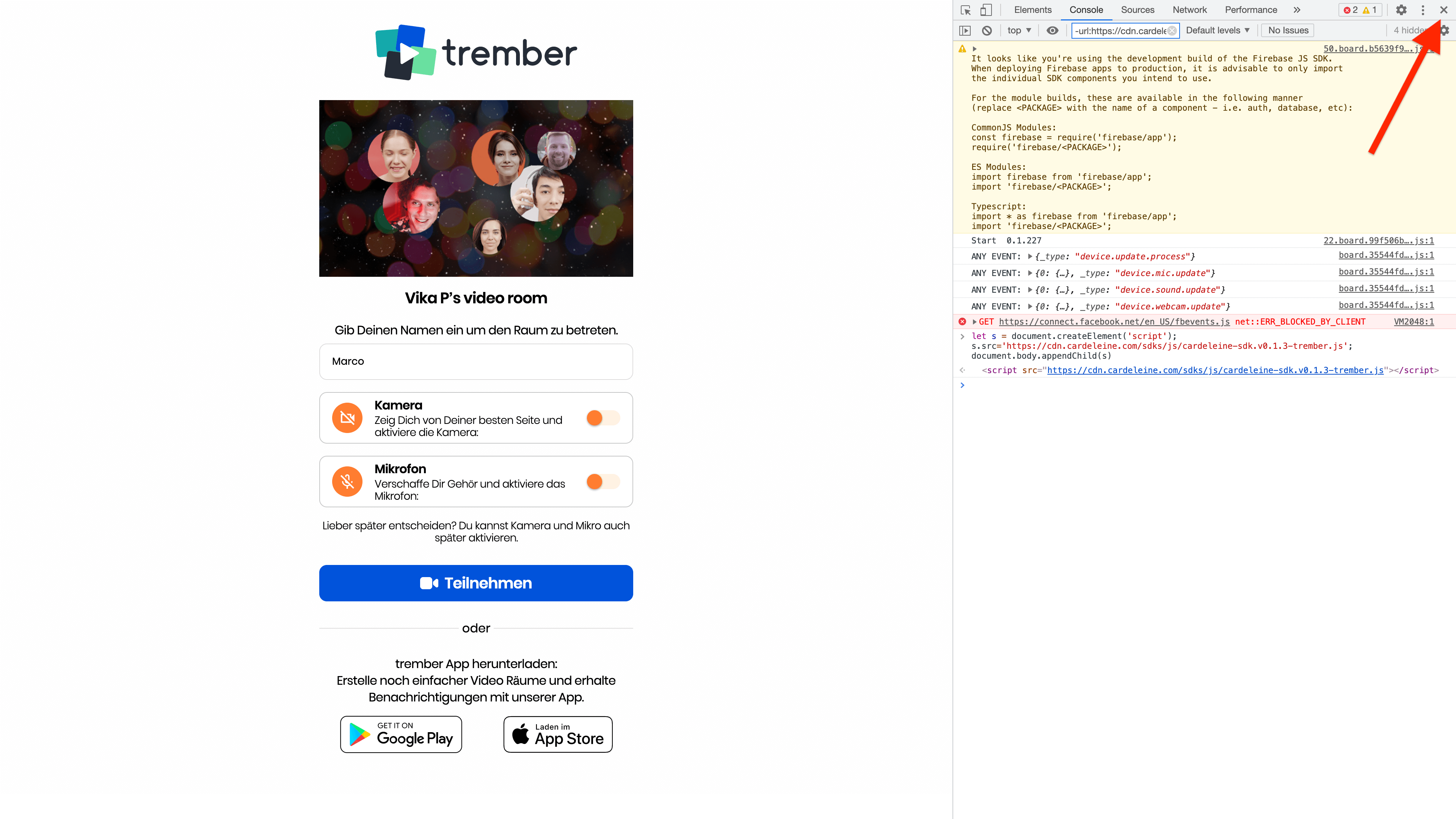
You can now safely close the Developer Console by clicking the small "x" Icon on the very top right of the Developer Console window.
You are all set up to enter the meeting room.
Want to integrate the SDK into your codebase?
If you tried the demo sdk for trember and want to implement the functionality into trember, please contact us to coordinate the next steps.
We look forward to hearing from you!